
Product variants in ecommerce: how to set them up well (and when not to use them)
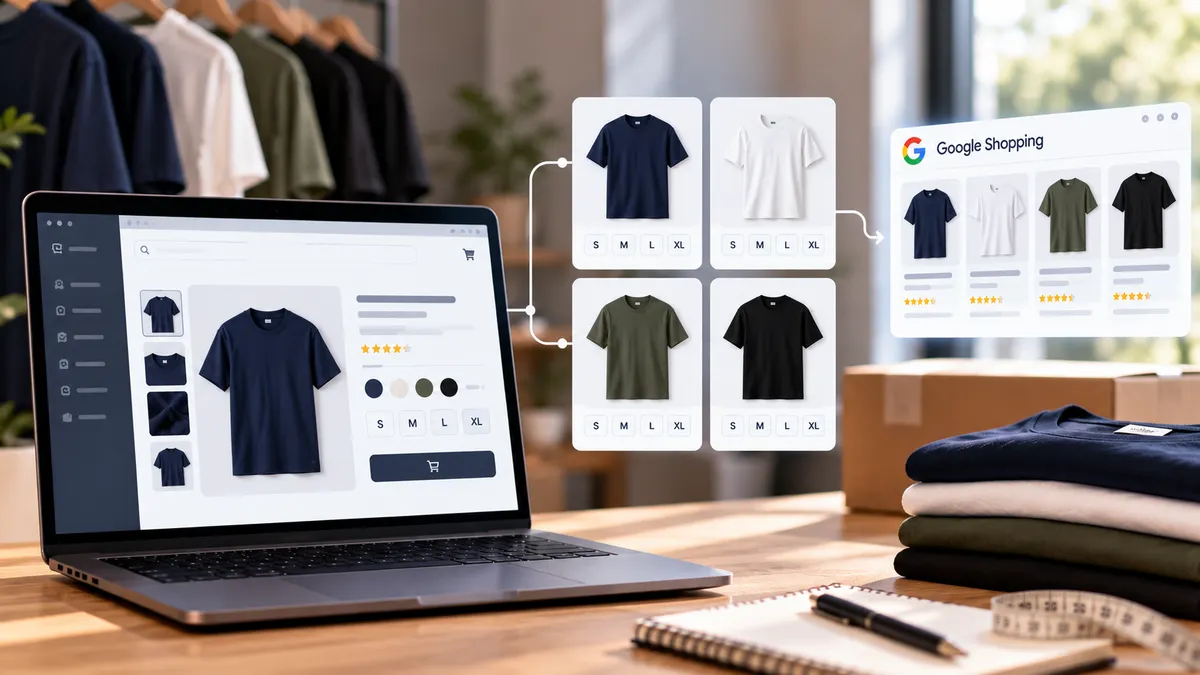
A T-shirt in three sizes and three colours looks like one product. To Google it is nine separate products, one per combination, tied together by the same group ID. That's the example Google Merchant Center uses in its guide to the item_group_id attribute.
This is why variants are one of the most important settings in a catalogue. They decide how customers choose, how they find the product in your site search, and how it appears on Google Shopping.
What a variant is, and what it isn't
Google's definition: variants are a group of similar products that differ only in some details, such as colour and size for clothing, or memory and screen size for electronics.
According to Google, similar but different products are not variants. A suit made of jacket and trousers, or a set of bathroom accessories, are products in their own right.
Variants or configurator?
- Use variants when the combinations are a finite list you know in advance: size S, M, L; colour white, black; 50 ml or 100 ml.
- Use a configurator when the product is made to measure and the price depends on dimensions or choices the customer enters: a blind 143 cm wide, a window with a specific glazing, fabric cut by the metre.
In Markeplay, the product configurator uses a templating system and a formula editor. We covered it in the guide on how to build a product configurator: read here.
.
Three questions before you create variants
Markeplay's Help Center gives advice that applies to any platform: study the product and avoid unnecessary variants. Sometimes it's better to create a single product for each purchasable option.
- Does the customer really choose between these options on the same page?
- Does each option need its own photo? For colours, almost always. For sizes, usually not.
- Should each option appear on its own in search results? If customers search for "blue sweater", it can help if the blue variant shows up as a result.
How to set up variants in Markeplay, step by step
These steps follow the "Le varianti" guide in the Markeplay Help Center (in Italian; the button names below are the Italian interface labels).
- Open the Variants tab. Go to the product card and open the last tab, "Varianti". Top right, click "Imposta varianti" (set up variants).
- Create the variant group. The group defines what varies (for example colour, size or dimension) and how it is displayed: as blocks, a drop-down menu or a list of choices. Blocks work well with a few short options; a drop-down is tidier when there are many.
- Fill in the option list. In "Lista opzioni" add the actual options for each group. You can set a specific image for each option, and reorder them with the side arrows.
- Create the variant products from the parent. Once the options are ready, duplicate the main product. Next to each product image a drop-down appears, where you set that product's variant. To change something compared with the main product, click the pen icon on the right.
[need: confirm that price, SKU/EAN and stock are set on each single variant, and how]
- Decide how to display them. Two settings matter:
- "Mostra nei risultati" (show in results): each variant also appears as a single product in site search;
- "Ordinamento Manuale" (manual sorting): tick the box in the top bar to reorder variants with the arrows next to each one.
Reorganising an existing catalogue
You don't have to start over if you imported a catalogue where each colour is a separate product, or one product with too many variants. Select variants with the checkbox to the left of the images and use the "Azioni" (actions) button:
- "Scorporare varianti" splits variants from the main product into single products;
- "Crea nuovo gruppo" creates a new product containing the selected variants.
It works the other way round too: from the product catalogue, select several single products and merge them into a parent product that holds them as variants.
Variants and Google Shopping
Google Merchant Center's guide to item_group_id sets a few rules:
- the attribute is required for free listings when a product has variants, and for Shopping ads in some countries (including France, Germany, the UK and the US);
- each variant has a unique ID, and all variants of the same product share the same item_group_id;
- grouping must match the landing page: if customers pick sizes on one page, those sizes are sent with the same group ID;
- give each variant a distinct URL, for example with a parameter like ?color=green&size=small;
- don't change the group ID over time, or grouping can become inconsistent.
Markeplay sends the catalogue to Google Merchant Center and Meta, and its Google & Social Shopping page states that it follows the metadata and constraints Merchant Center requires.
Five mistakes to avoid
- Variants nobody chooses. Every extra option is another photo, stock level and data point to maintain.
- Different products in one group. A set is not a variant, as Google explicitly says.
- No images for colours. If a customer clicks "blue" and sees a black photo, they leave.
- Variants for made-to-measure. If there are hundreds of combinations and the price depends on dimensions, you need a configurator.
- Changing the structure often. Every reorganisation changes what Google sees. Decide the structure before you upload the catalogue.
For comparison: Shopify allows up to 2,048 variants and three options per product (Shopify Help Center, read 19/10/2026). Markeplay's Help Center doesn't state a fixed limit on combinable variants, which is exactly why it advises against creating unnecessary ones.
FAQ
What's the difference between a variant and a product? A variant is a version of the same product that changes in one detail, such as size or colour. If the nature of the product changes, it's a different product.
Can a variant appear as a single product in search? Yes. In Markeplay, ticking "Mostra nei risultati" shows each variant as a single product in site search.
I imported colours as separate products. Do I have to redo everything? No. From the catalogue, select the single products and merge them into a parent product via "Azioni".
Variants or configurator for made-to-measure products? The configurator. Variants are for a finite list of combinations; a configurator calculates the price from the customer's dimensions and choices.
Do variants matter for Google Shopping? Yes. Google asks you to group variants with the same item_group_id and to give each variant a unique ID.
Try it on your catalogue
- 30-day free trial: https://backoffice.markeplay.com/register?utm_source=blog&utm_medium=article&utm_campaign=varianti-prodotto-ecommerce-guida&utm_content=cta-en
- Complex catalogue? Request a demo: https://www.markeplay.com/en/contactus
Sources
- Google Merchant Center, "Item group ID [item_group_id]": https://support.google.com/merchants/answer/6324507
- Markeplay Help Center, "Le varianti": https://markeplay.gitbook.io/product-docs/linee-guida/catalogo/le-varianti
- Shopify Help Center, "Adding variants": https://help.shopify.com/en/manual/products/variants/add-variants
- Markeplay Configurator and Google & Social Shopping pages